
How vJetOps works
Everything the portal does, for a pilot who has never used it. New here? Start with the first flight, step by step. First flight guide →
1After you register
First flight, step by step →- Your account starts with a callsign, a balance and the airport you chose. You are always at one airport: where you started, and after that wherever your last flight ended.
- Set your simulator and units in your profile. Only aircraft that exist for your simulator are offered to you.
- Add your SimBrief pilot ID to your profile so flight plans go back and forth by themselves. VATSIM and IVAO IDs are optional and enable the Prefile buttons.
- You do not need to own an aircraft or have money to begin: public aircraft wait at every airport.
2Finding an aircraft to fly
- Public aircraft are rented by the hour flown. The ones parked at your airport are listed under the charters on the Charters page, with range, seats, runway needed, condition and hourly rate.
- To fly one particular type you own in the simulator, use the Search by aircraft box on the Charters page: type its name, pick it, and you get every airport that has one free, nearest first, with the charters waiting there. Travel there and its charters are on your board.
- Every airport page lists the charters leaving from it and the aircraft to rent there.
- A charter that leaves from another airport: use Look at another airport on the Charters page. It opens the charter board of that airport, for the aircraft to rent there, with a button to travel to it.
- The aircraft loaded in the simulator must be the type you booked. The tracker checks it; a different aircraft holds the report for review.
- Rental is charged only when the flight lands at an airport. A cancelled flight costs nothing and the aircraft goes back where it was. Fuel is included in the rental.
- Public aircraft move on to other airports by themselves and wear with use. One below 60% condition is grounded until it has been through maintenance.
3Choosing a charter
- The board lists the flights the selected aircraft can make from where it is parked: passengers, cargo or medical. Change the aircraft at the top to see what another one can reach.
- Click a charter to see the route on a map, the client, distance, estimated time, pay and how long you have to fly it. Urgent charters pay 20% more and must be flown within 24 hours.
- One flight at a time. Book it, fly it or cancel it before taking another.
- A charter beyond the range of the aircraft can still be flown, in legs: tick "Include longer charters that need fuel stops" and choose each stop on the flight page.
- A charter that leaves from another airport shows the fare to travel there as a passenger. You can also create your own charter between two airports.
4Dispatch: planning the flight
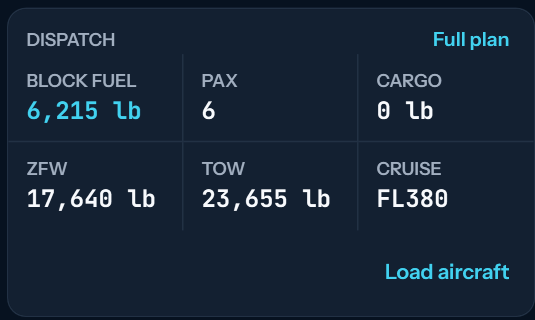
- On the flight page, Generate in SimBrief opens SimBrief with the aircraft, passengers, cargo and crew weight already filled in. Finish the plan there and come back: the portal picks it up.
- On a short leg the portal asks SimBrief for a cruise altitude that fits the distance. You can set your own altitude, route and alternate and generate again.
- No SimBrief? Type the departure fuel by hand on the flight page. The tracker then loads that fuel and the passengers and cargo of the manifest.
- The Prefile buttons send the plan to VATSIM or IVAO when you fly online.
5The tracker: flying the flight
- vJetOps Tracker is a Windows program that runs beside the simulator. It only watches the flight: it never moves a switch on your aircraft.
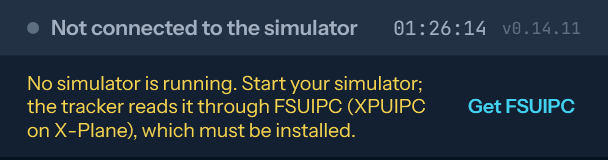
- It reads the simulator through FSUIPC (FSUIPC7 for Microsoft Flight Simulator, the free version is enough; XPUIPC for X-Plane). With no connection, the tracker says which piece is missing and gives a link to download it.
- When a newer tracker is out, a bar at the top says so: Update now downloads it and restarts the tracker by itself.
- Sign in with your portal email and password. With the simulator at the departure airport and the right aircraft loaded, press Load aircraft: fuel and payload are set as dispatched and turn green.
- Some aircraft load only from their own EFB. The tracker says so: load from the EFB with the same SimBrief plan and the figures turn green when they match.
- Press Start flight, fly, land, park with the parking brake set and press Submit flight. Keep the tracker open the whole time.
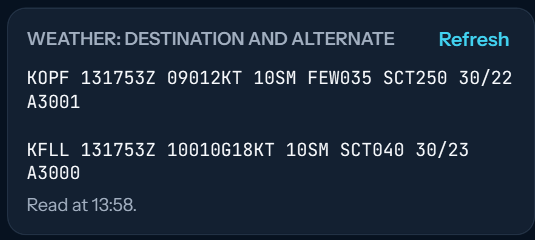
- On the Dispatch tab, Get METAR shows the latest weather report for your destination and your alternate. Refresh asks again.
- Landing lights: off as you climb through 10,000 ft and on as you descend through it. The tracker looks once each way, with 1,000 ft of margin; a miss raises an alert and costs reputation.
- Pausing the simulator pauses the tracker: paused time is not flight time and nothing is judged meanwhile. More than 15 minutes paused in the air holds the report for review.
- With Discord open on the same PC, your flight shows on your Discord profile: route, aircraft, phase and distance to go.
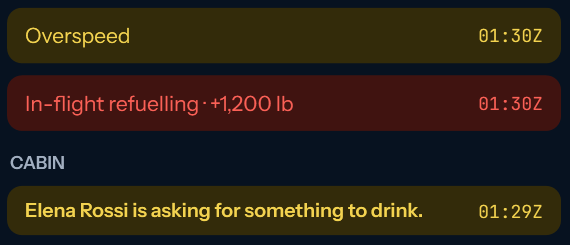
- Time acceleration, slew, refuelling in the air, long pauses, overspeed, stall and a crash raise alerts. Some of them hold the report for an admin to review before it is paid.

6Passengers and satisfaction
- Every passenger has a name and reacts to how you fly: steep turns, hard jolts, fast descents and a hard landing cost satisfaction. A smooth flight wins it back slowly.
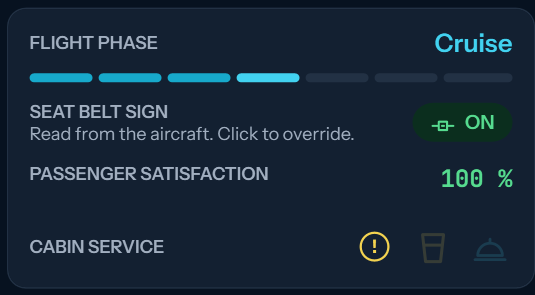
- Seat belt sign: on for takeoff and landing. In a calm cruise turn it off; left on for twenty minutes with smooth air, the cabin gets tired of it.
- With the sign off, passengers get up. A jolt with someone on their feet throws them down. Turn the sign on before rough air.
- On jets and larger turboprops passengers ask for a drink after half an hour and a meal on long flights. Send cabin service from the tracker with the glass (drinks) and covered dish (meal) buttons; it only goes round with the sign off, and takes longer the more passengers there are.
- A yellow mark beside those buttons means the cabin is waiting for something from you: hover over it to read what. Everything passengers do and say during the flight is listed under Alerts.
- Delays on the ground wear on the cabin: more than 20 minutes from Start flight to takeoff, or more than 15 from landing to parked, and satisfaction falls by the minute. A late departure can be made up for in smooth air; a slow taxi in cannot.
- Storms, rain, fog and gusts at the departure or arrival airport make the cabin uneasy. That is taken from the real weather report of the airport.
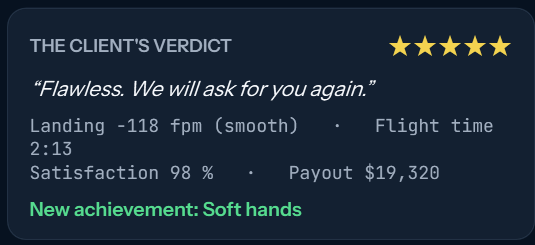
- At the end the client rates the flight from one to five stars and says why.
7What a flight pays and costs
- Pay: the charter price, plus 10% for a landing of 200 fpm or less and 5% for satisfaction of 95% or more. A hard landing or an unhappy cabin takes pay away.
- Costs taken off when the flight ends: rental (public aircraft), fuel (your own aircraft), crew for aircraft that need more than one pilot, and landing and handling fees by airport size.
- Finance lists every flight with what it earned and what it cost, and every movement of your account.
- Reputation goes up with good landings and clean flights, goes down with alerts such as overspeed, stall or landing lights left wrong at 10,000 ft, and matters to the bank.
8Ferry flights
- A ferry moves an empty aircraft for its owner: a delivery from the factory, a sale, a lease return. The aircraft comes with the job, there is no rental, and the client pays the fuel and the airport fees.
- No deadline. Fly it in as many legs as you like; each leg pays for the miles it brought the aircraft closer, and the last one adds a delivery bonus.
- You can leave a ferry part of the way and another pilot can carry on from there.
- Search by airport or by aircraft type. Offers come and go: one nobody takes is withdrawn and another appears somewhere else.
9Contracts for airliner-size jets
- BBJs and ACJs cost too much by the hour to rent for an ordinary charter, so they fly only on contracts made for them, listed under the charters at your airport.
- A contract pays the ordinary rate plus the cost of the aircraft and crew with a margin on top. The table shows the pay, the cost and what you keep.
- If you own one, it gets contracts of its own that only you can take, and you keep more because you pay no rental.
10Buying and owning an aircraft
- Finance, Buy aircraft: type the aircraft and pick it. You see the new one at the factory and every used one for sale, with where it is, its hours, condition and price.
- A new aircraft is collected at its factory airport, with empty tanks. A used one is cheaper, carries hours and wear, and is flown from the airport where it stands.
- Prices follow a market that moves every day. You can sell your aircraft back to the market from the hangar.
- Your own aircraft pays no rental, but you pay its fuel and its maintenance. It stays where you leave it, and keeps the fuel it landed with.
- Owning costs money even on the ground: an ownership fee of 0.4% of what the aircraft is worth, charged on the first of every month (the rest of the month when you buy it). If it takes your account below zero, your own aircraft stay on the ground until you are back above zero, and after three months in a row below zero they are sold.
- The hangar shows each aircraft with its hours, fuel on board and condition, lets you add fuel and send it to maintenance, and opens its logbook.
11The bank
- The bank lends to pilots with a record: enough hours, flights, days in the operation, reputation and money of their own. The page says what you still lack.
- Interest is charged monthly and the instalment is taken from your account on the 1st. You can repay early.
- Three unpaid months and the bank takes an aircraft back and sells it.
12Airports and travelling
- Any airport name on the portal opens its page: runways, lighting, frequencies, current weather, landing fees, the charters leaving from it, the aircraft to rent there and a link to its charts.
- To be somewhere else without flying there, use Travel in the Flights menu: pick any airport, see the fare and go. You can also travel from any airport page. The fare depends on the distance. Your aircraft stay where they are. The button under its charters takes you there and opens the charter board.
- Every airport has aircraft to rent that fit its runway and charters for them. On the Charters page, Look at another airport opens the board of any airport, found by code, name or city.
13Career and regular clients
- Career counts your achievements: smooth landings, ocean crossings, long legs, flights flown, happy cabins.
- A client you fly well asks for you again. Their charters appear on your board for you alone, paying 5% more for every flight together, up to 25%. Now and then they write from another airport instead, asking you to come and fetch them: see Client requests.
- A one-star flight, or two poor ones in a row, and that client stops calling.
14Client requests: the inbox
- A regular client who is at another airport may write to you instead of calling from where your aircraft is: come and fetch us. The message arrives in your Inbox, in the menu under your avatar; a number on the avatar says how many you have not read.
- Each request shows what the client wrote, the two flights it takes and what each pays, in the aircraft that would fly it: your own, or for a rented one the same aircraft if it is still free, otherwise the nearest free one of the type. You have three days to answer.
- Accept, and two flights are made for you alone. First the positioning flight, empty, from where the aircraft is to the client. Then the charter itself, from the client's airport to where they are going.
- Each flight is booked from the Inbox, dispatched in SimBrief, flown with the tracker and reported on its own, like any other. The charter can be booked once the positioning flight is done and the aircraft is with the client.
- The positioning flight pays what flying empty costs, with a margin. The charter pays its rate, the client's loyalty bonus and a pickup premium of half what the positioning flight paid. Rental, fuel, crew and fees come off as on any flight.
- In the tracker the positioning flight shows as a ferry: an empty aircraft, with no cabin to look after.
- An aircraft takes one accepted request at a time. A rented aircraft promised to a client is held for you: nobody else can rent it meanwhile.
- Decline and nothing is lost; the client just takes longer to write again. Accept and leave either flight unflown for five days, and the client is let down: their satisfaction drops, and they may stop calling.
15Forum, live map and support
- The forum is for pictures of your flights, questions and talk. Up to four pictures a post; click one to see it large. You can like posts and delete your own.
- The live map shows who is flying now, by callsign.
- Something not working? Ask in the forum under Questions and support, or write to operations@vjetops.com.