
Fly with the tracker
What the tracker shows you during a flight, and what the cabin expects of you.
- 1Connect to the simulator
- 2Load the aircraft
- 3Check the weather
- 4Look after the cabin
- 5Watch the alerts
- 6Submit and read the verdict
- 7Keep it up to date
Connect to the simulator
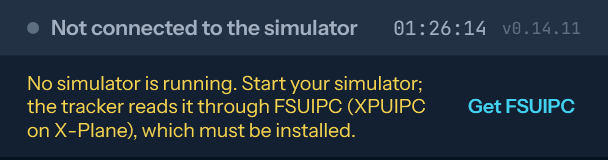
Start the simulator first, then the tracker. If it cannot connect, it says which piece is missing (FSUIPC7 or XPUIPC) and links to it.
Load the aircraft
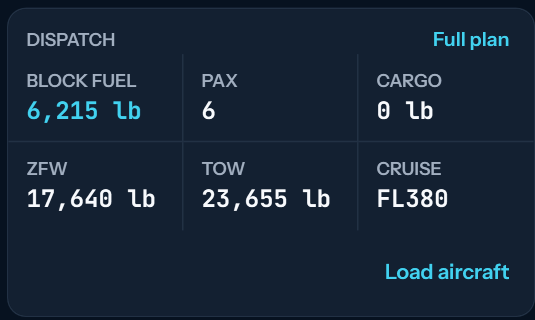
Sign in, check the flight it shows, and press Load aircraft. Fuel and payload turn green when they match the dispatch. Some aircraft load from their own EFB: the tracker says so.
Check the weather
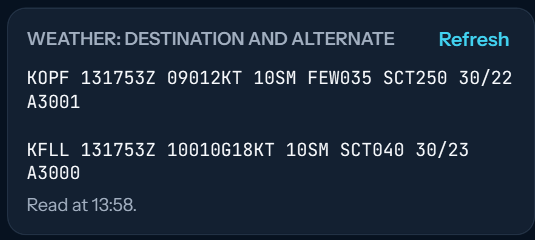
Get METAR shows the latest weather report for your destination and your alternate.
Look after the cabin
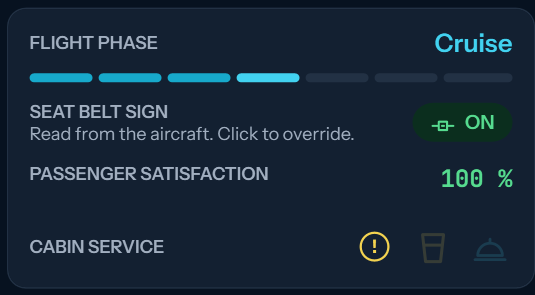
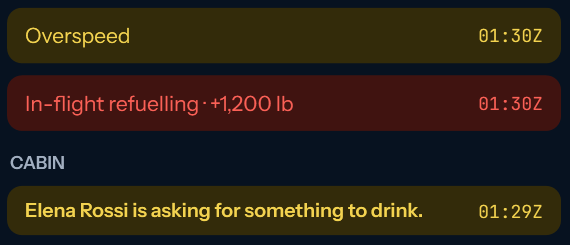
Seat belt sign on for takeoff, landing and rough air; off in a calm cruise. Send drinks and meals with the glass and dish buttons. A yellow mark means the cabin is waiting for something.
Watch the alerts
The Alerts tab lists what the flight raised and everything the passengers did and said. Overspeed, stall, long pauses and time acceleration cost reputation or hold the report for review.
Submit and read the verdict
Parked with the brake set, press Submit flight. You see the stars, what the client said, your landing and the pay.

Keep it up to date
When a newer tracker is out, a bar at the top says so. Update now downloads it and restarts the tracker by itself.